How to Install M365 Office on your PC (Windows)
1. You must first uninstall any previous version of Office on your PC (Click here for directions)
2. Log into https://portal.office.com using your CUNYfirst credentials (firstname.lastnameXX@login.cuny.edu where XX are the last two digits of your EMPLID), then click Next
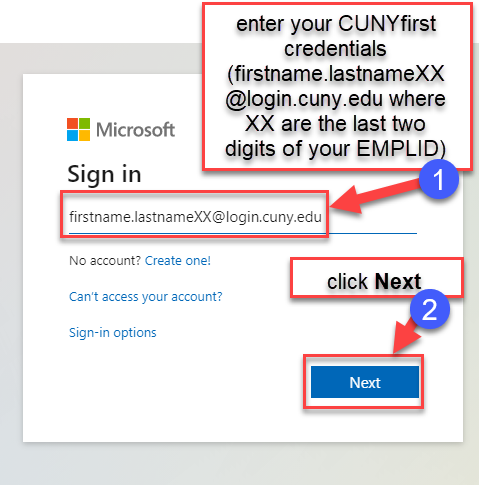 Sign In
3. You will be prompted to enter your CUNY Credentials (firstname.lastnameXX@login.cuny.edu where XX are the last two digits of your EMPLID) and CUNYfirst password on the CUNY Web Applications Login page, then click LOGIN.
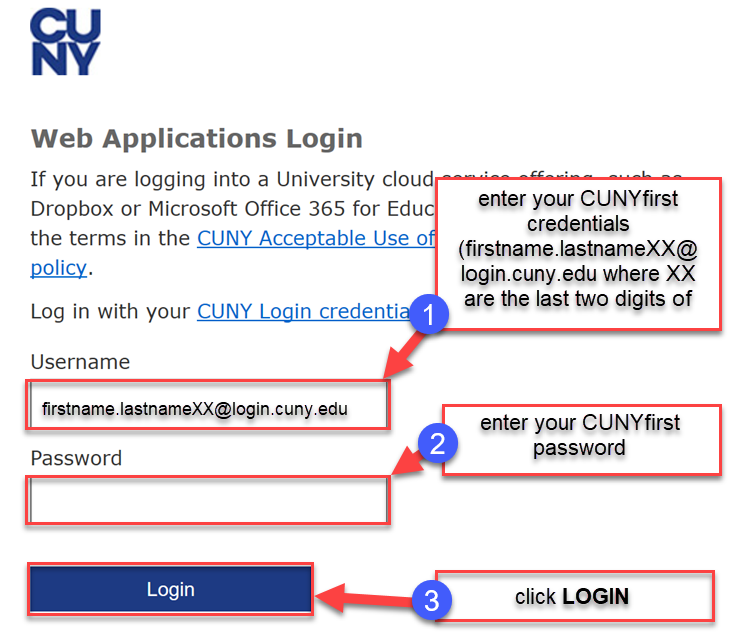 Login Credentials
4. Click the Install and more button in top right and select download “Install Microsoft 365 apps”
 Install
5. You will be redirected to your account settings, click "Install Office":
 Install Office
6. The .exe OfficeSetup file will download , once the download is complete select the file to start the installation process. You will be prompted "Do you want to allow this app to make changes to your device ? ", select Yes to continue.
7. Office 365 will beginto download:
 Stay Online
8. Once Office 365 is installed, the message below will appear, click Close to complete the installation:
 Installed