How to Add M365 account to the Mail app (iOS)
1. Tap the iOS settings
 Settings
2. Scroll then tap Mail
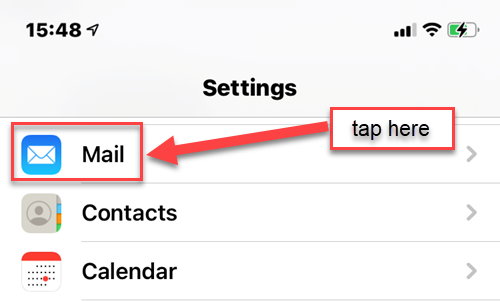 Tap Mail
3. Tap Accounts
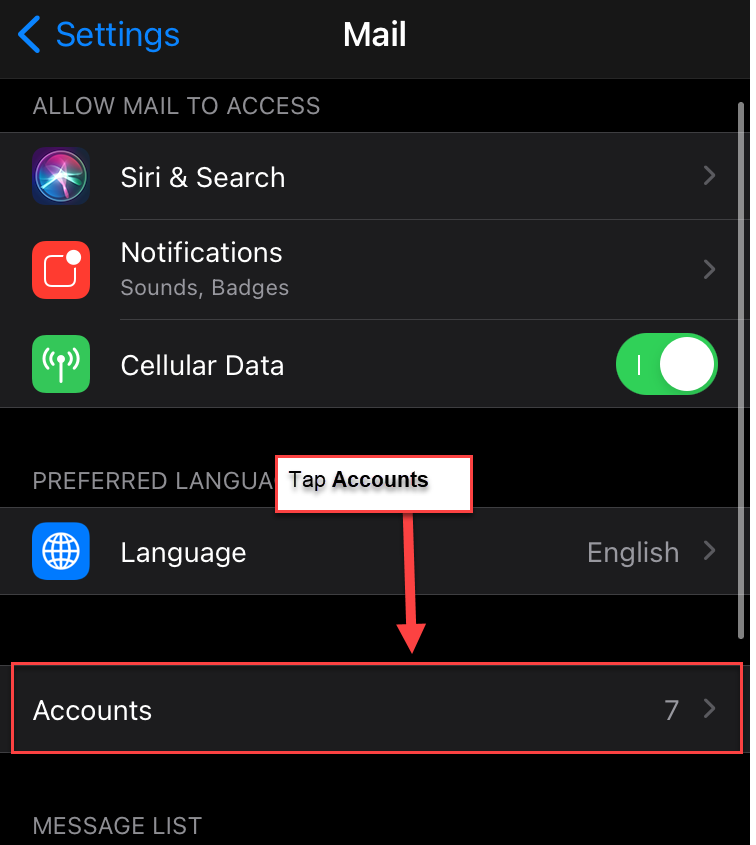 Tap Accounts
4. then tap Add Account
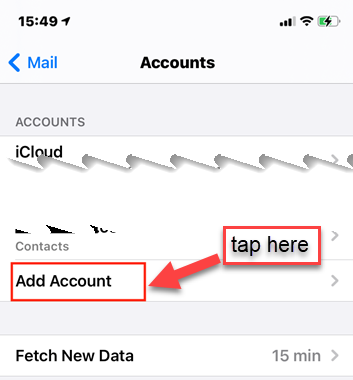 Add Account
5. Select Microsoft Exchange
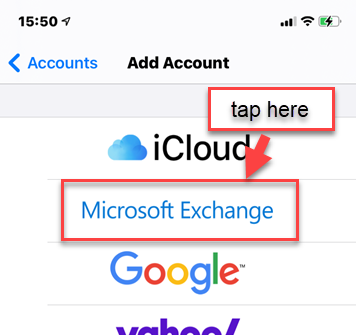 Microsoft Exchange
6. Enter your CUNYfirst credentials (firstname.lastnameXX@login.cuny.edu where XX are the last 2 digits of your EMPLID), then add a description to identify the account, then tap Next
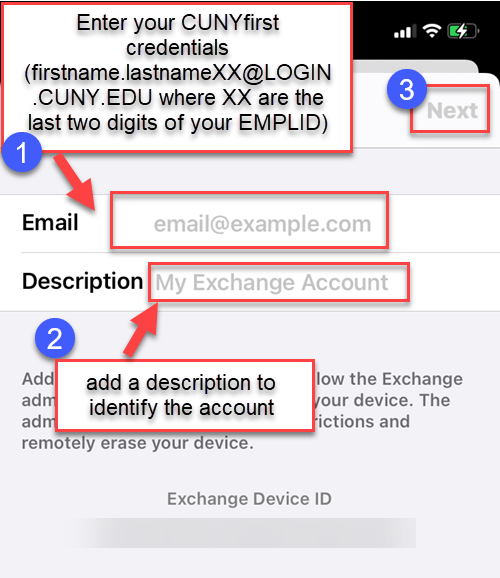 Login Credentials
7. Tap Sign In when the popup window appears
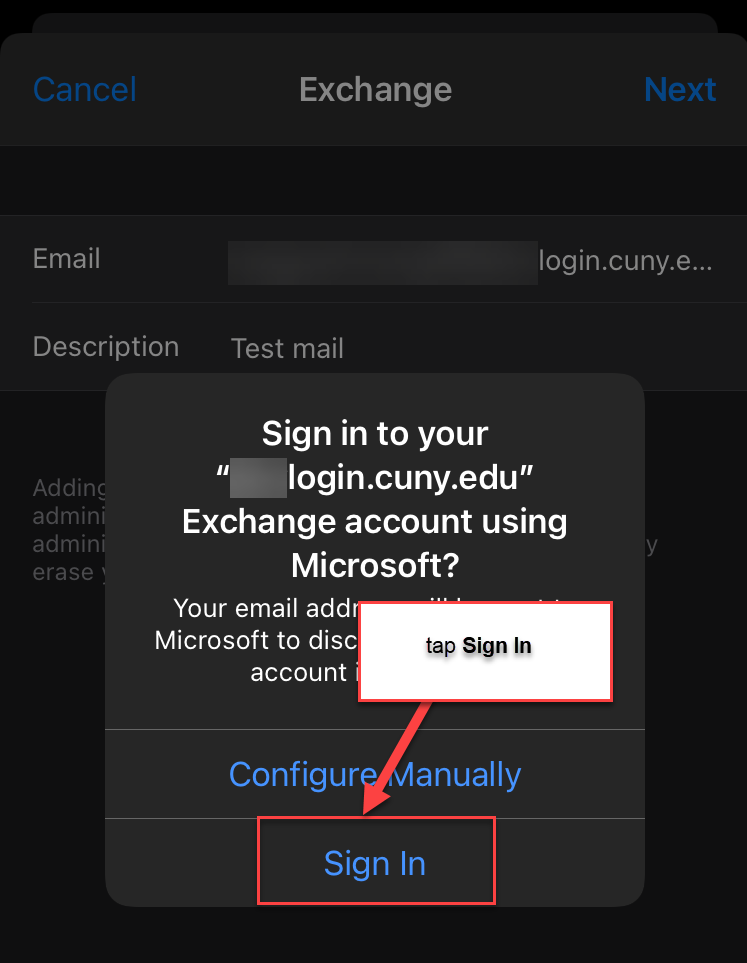 Sign In
8. On the CUNY Web Application Login pop up, Enter your CUNYfirst credentials (firstname.lastnameXX@login.cuny.edu where XX are the last two digits of your EMPLID), then enter your CUNYfirst password, and then tap to select Login
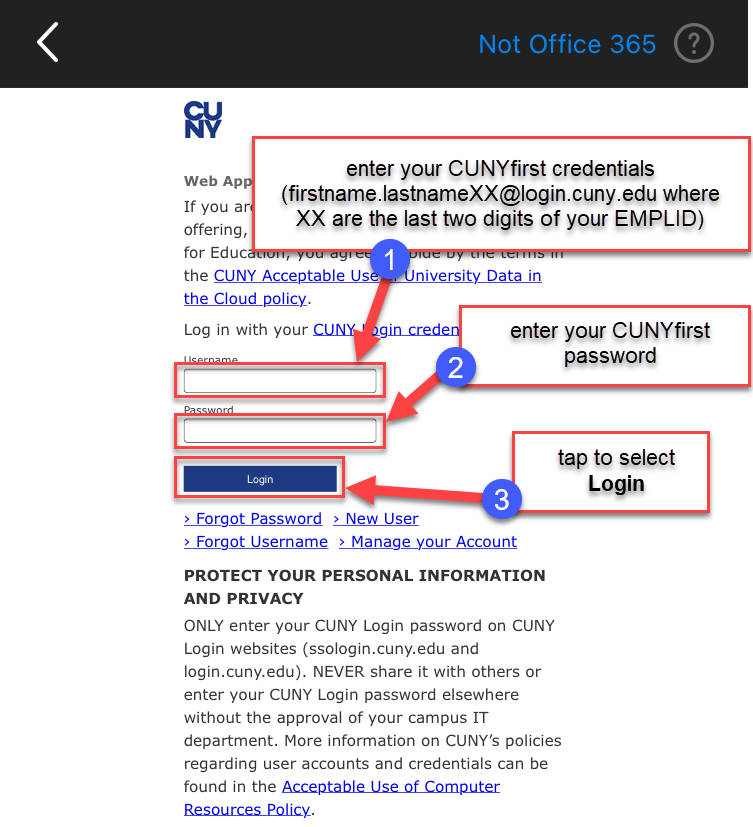 Login Credentials
9. If you are prompted with a Permissions request, tap Accept
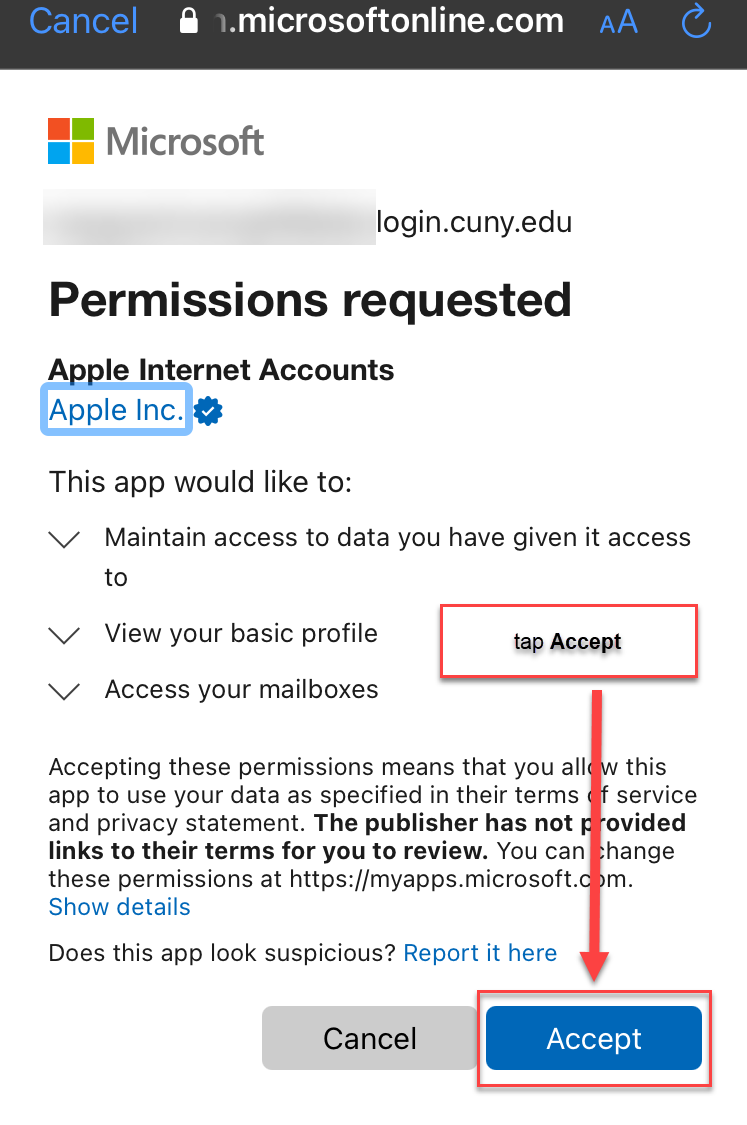 Accept
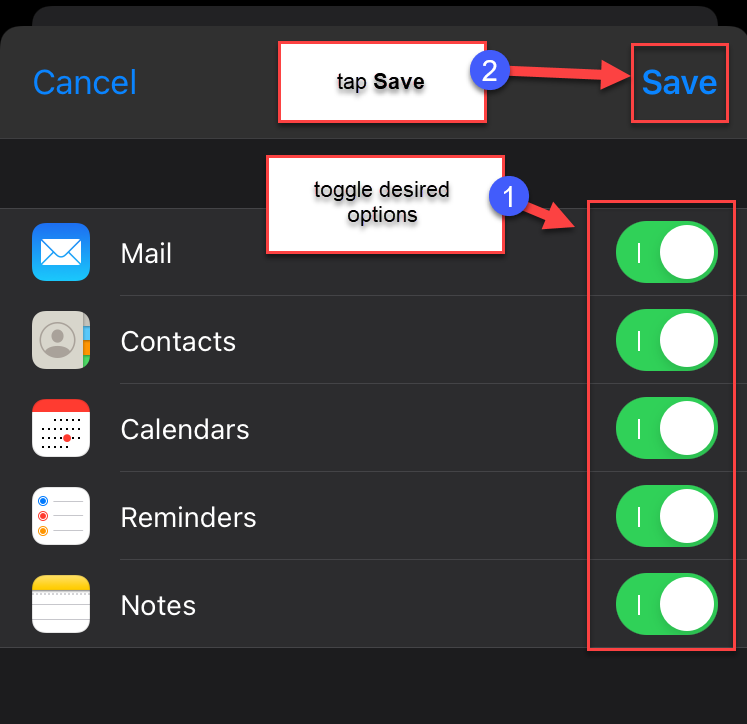
10. Toggle the options you wish to have on your Mail app, then tap Save
 Save
Save