VPN and Remote Desktop at Home Guide (Apple at Home to Windows at Work)
User Guide for connecting Apple computers from outside to an Windows computer on the campus network.
Install the VPN client (PaloAlto GlobalProtect) on your PC
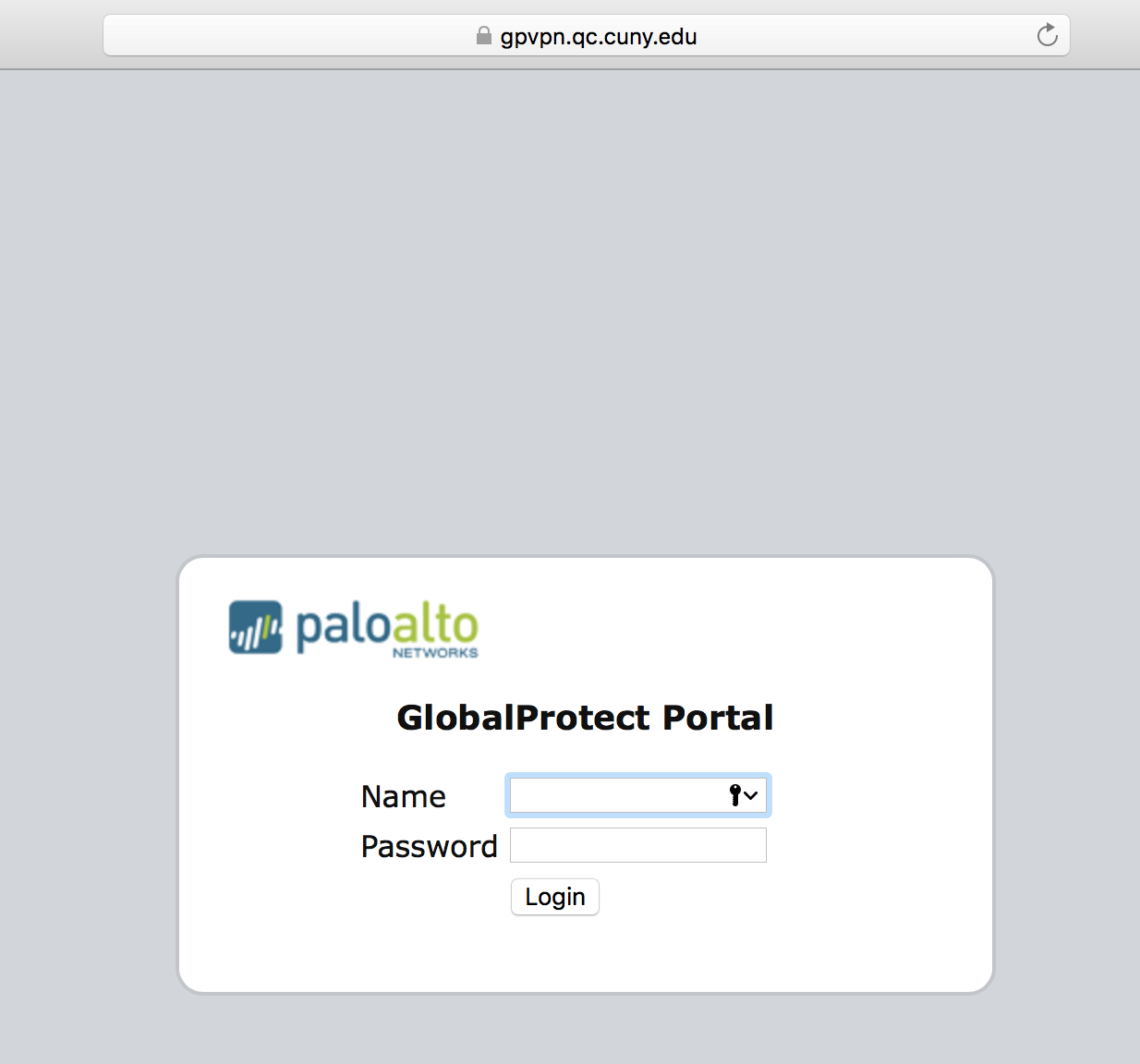
Open the web browser and type in the following website in the address bar: https://gpvpn.qc.cuny.edu
 Login
Login
Input just your QC username (ex. JSmith) and password to login for downloading the client installation file
 Link
Link
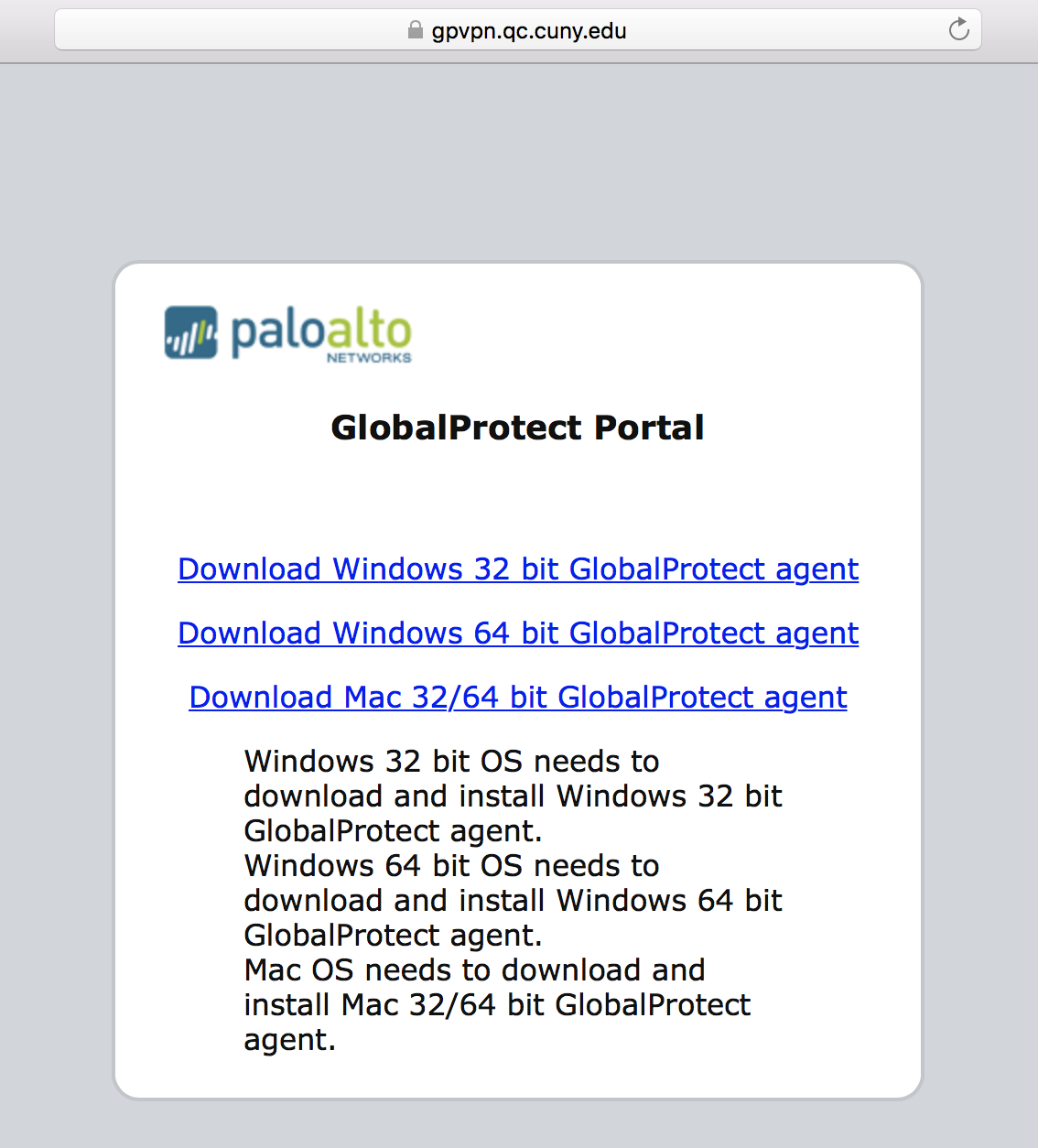
Click on the corresponding link to download the VPN client installation file: “Download Mac 32/64 bit GlobalProtect agent” for Mac computer (GlobalProtect.pkg)
 Package
 Downloads Folder
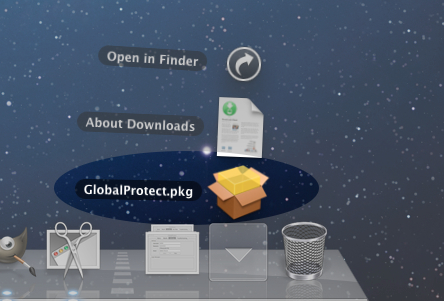
Click on the Downloads folder in the dock to see the downloaded package. Install the package.
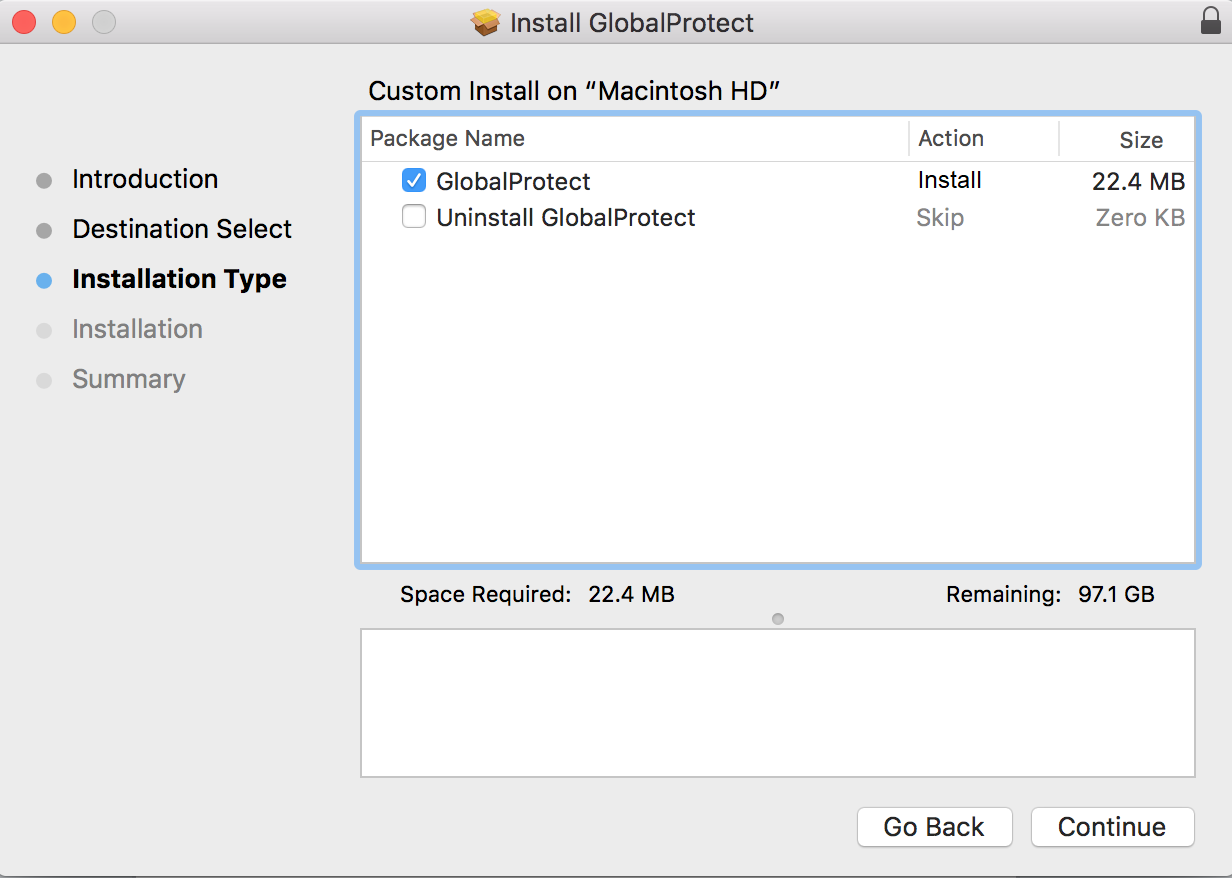 GlobalProtect
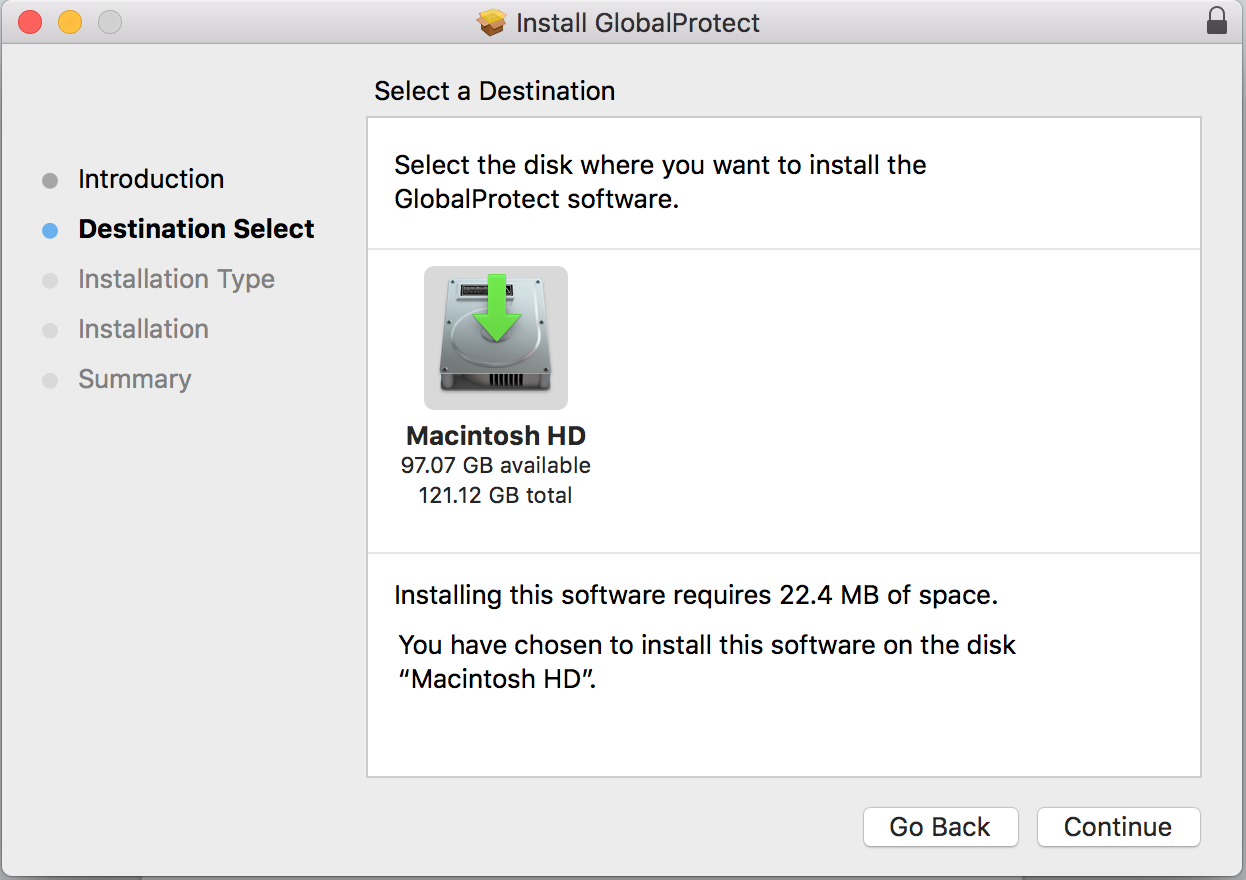
Select “GlobalProtect”, DO NOT select “Uninstall GlobalProtect”. Click “Continue”
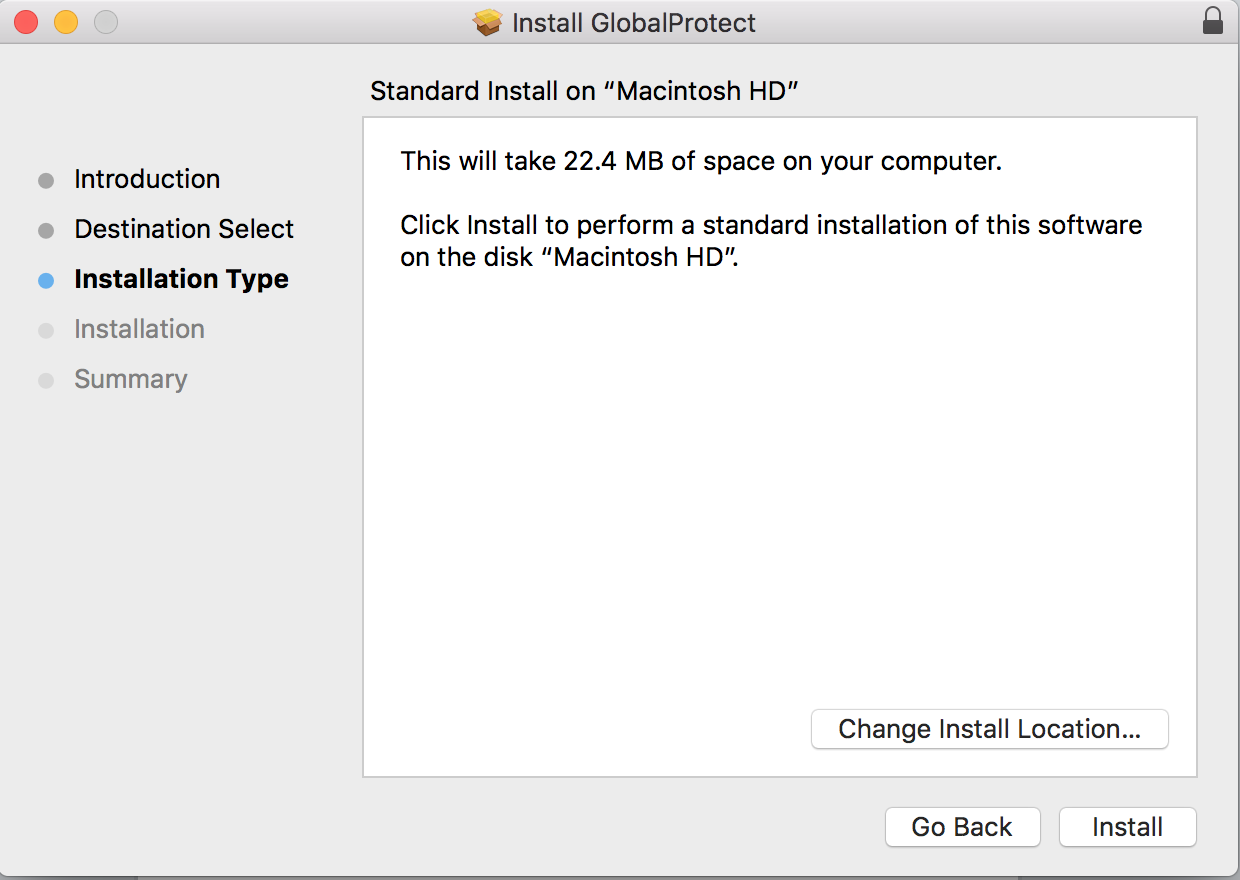 Install
Keep all the default settings, click “Install” to start the installation.
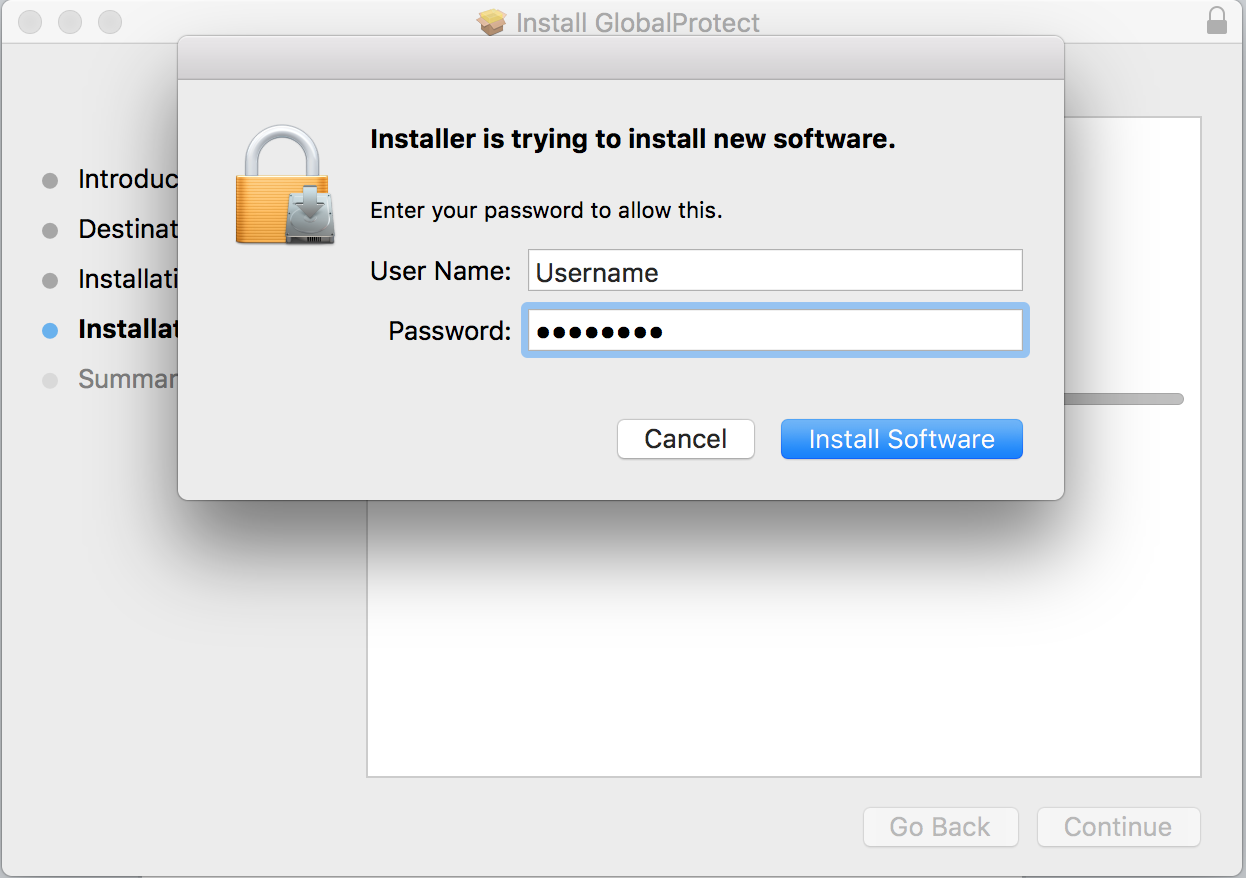 Password
The installation requires administrator privilege. This is the local administrator of your computer. This is NOT a QC administrator.
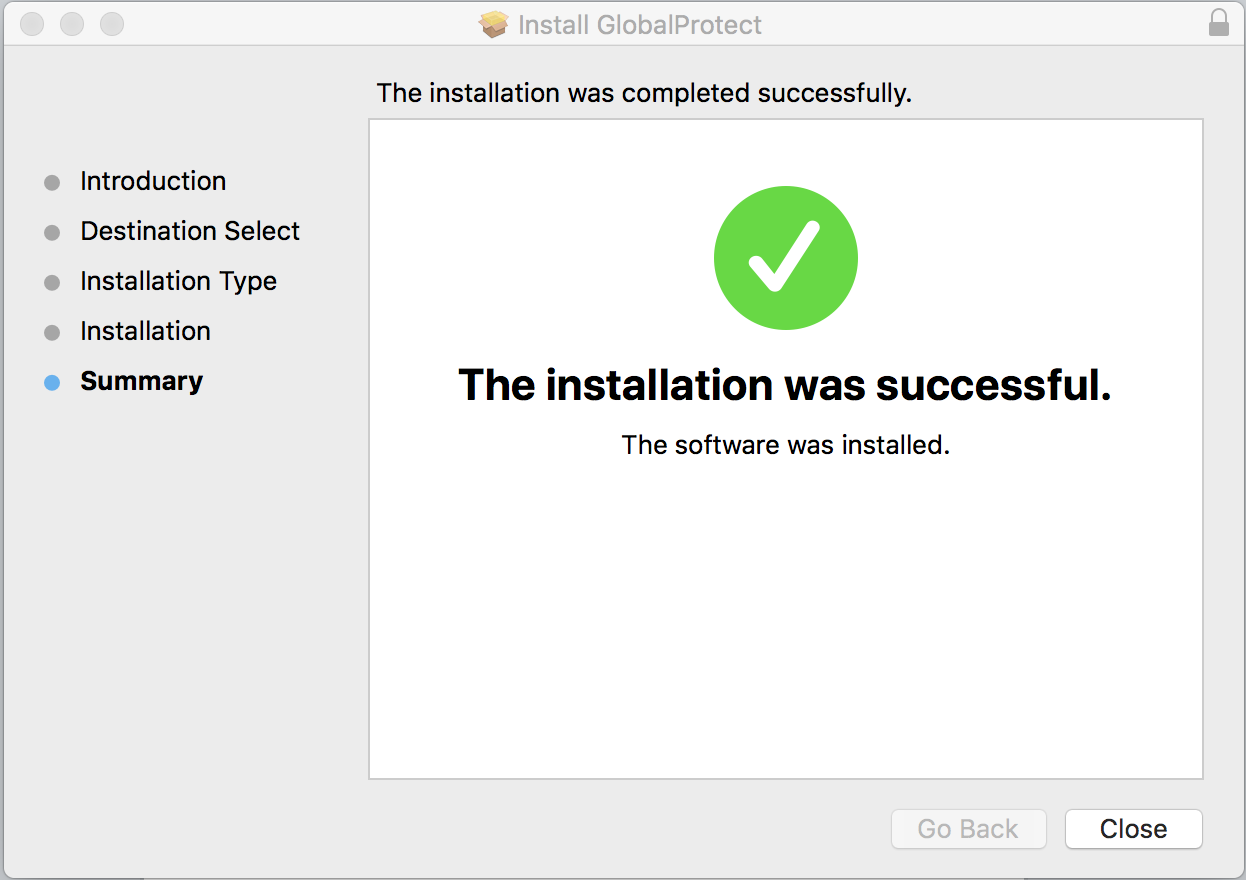 Successful
Close the dialogue windows after the installation completed, and close the browser.
Login and Connect the VPN client (PaloAlto GlobalProtect) on your Mac
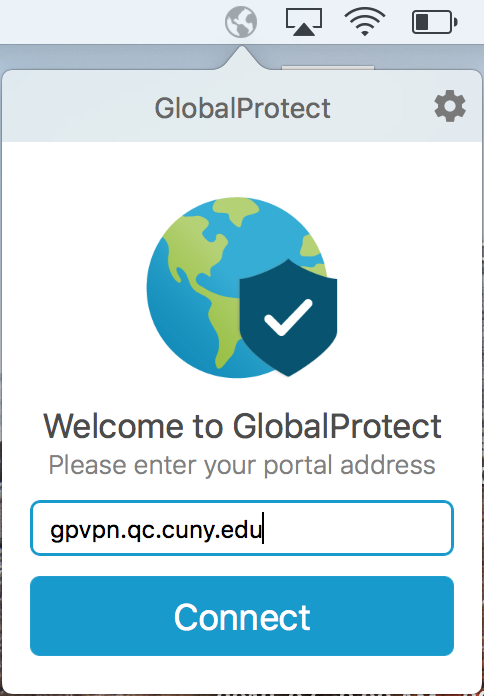
(The VPN agent can be found under “Applications” and small globe icon  on the top menu bar)
 Connect
Input the portal address “gpvpn.qc.cuny.edu”, and click “Connect”
 Sign In
 Connecting
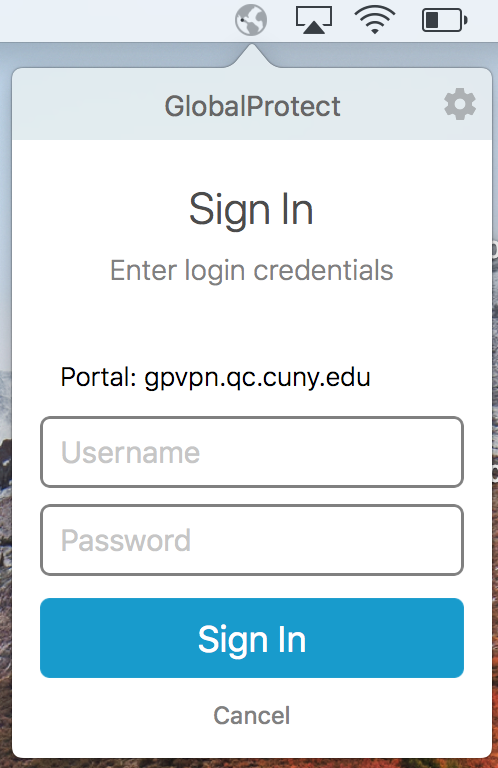
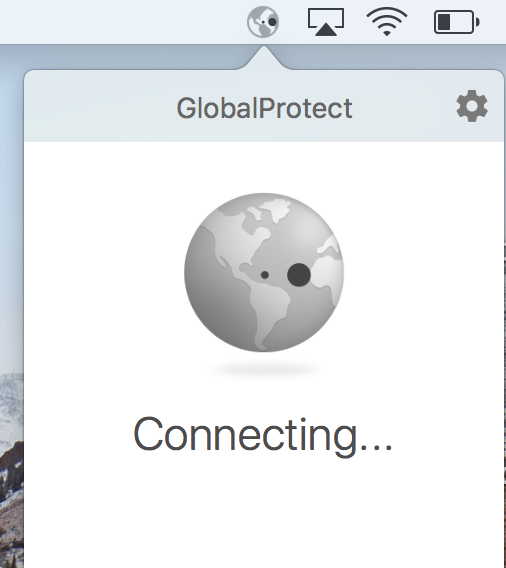
When prompted, input just your QC username (ex. JSmith) and password for authentication
 Connected
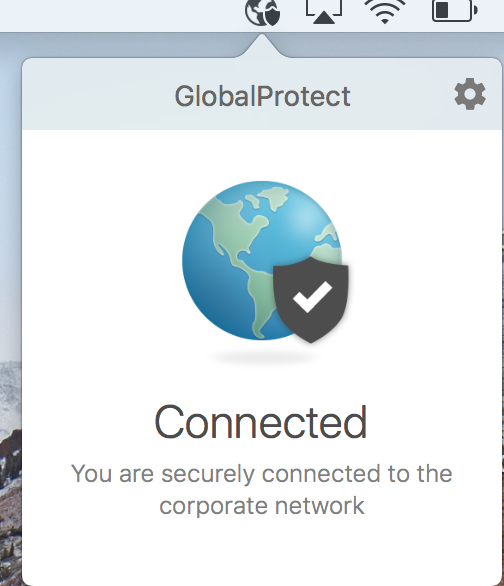
After successfully authenticated, the PC is now connected remotely to QC network via VPN
Download Remote Desktop and connect to your work computer.
 Link
Link
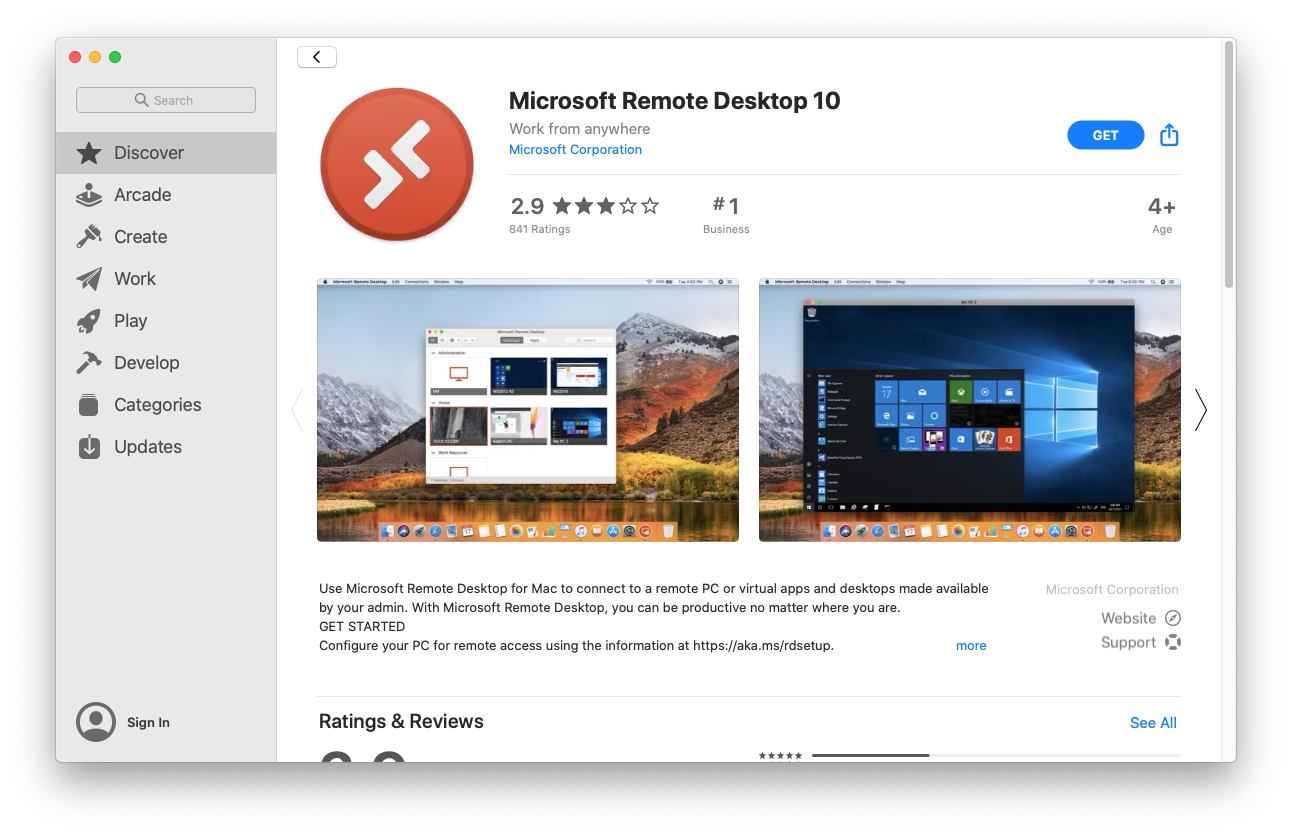
In the browser of your choice, enter http://bit.ly/QCRMTMAC. It will take you to the Apple Store page for the Microsoft Remote Desktop.
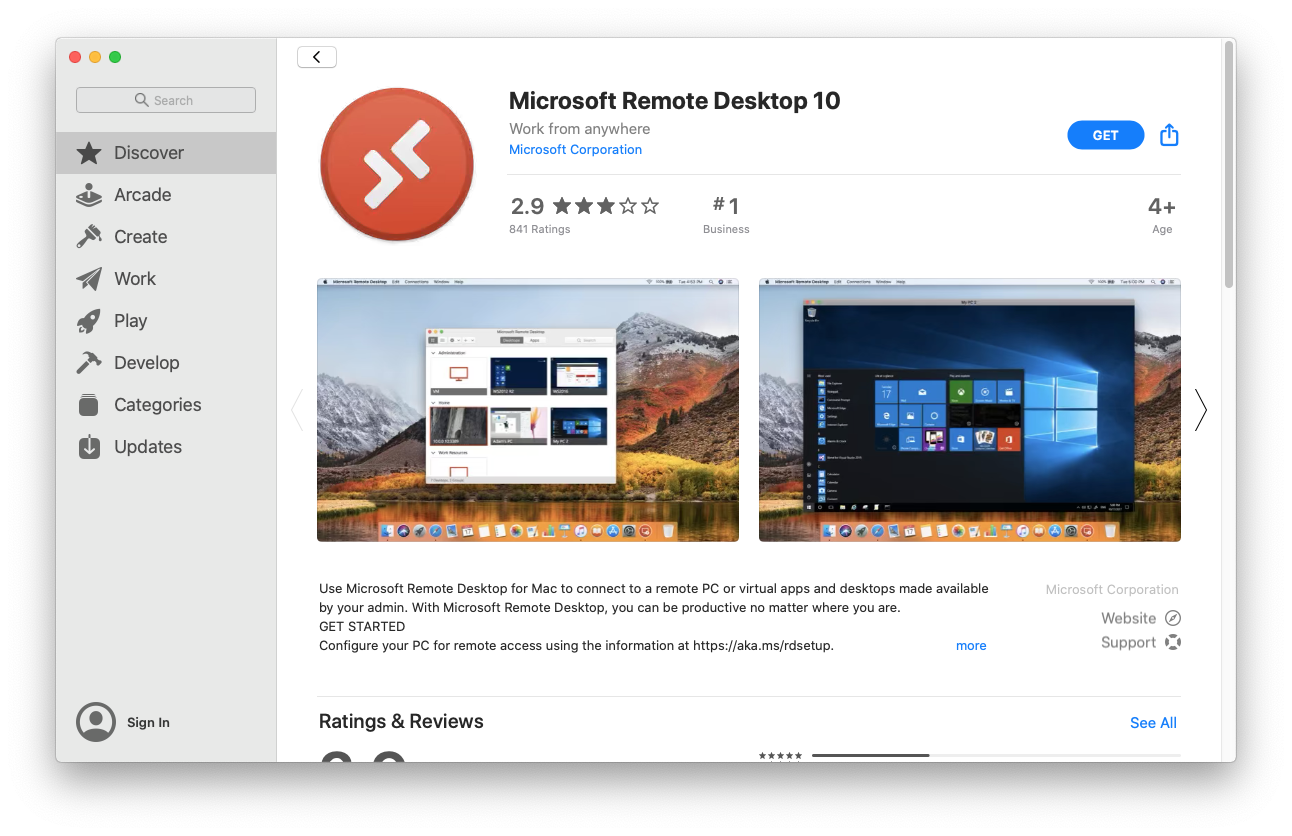 Remote Desktop 10
Click the blue button in the upper right corner of the screen labelled GET.

It will become a green button labeled INSTALL. Click it.
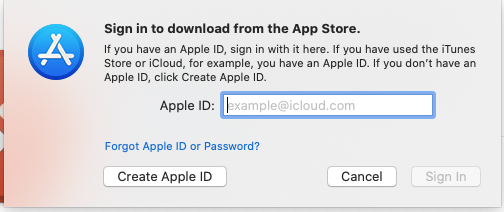 Sign In
Input your Apple ID and password.

The green button will become a blue button labeled OPEN. Click it.
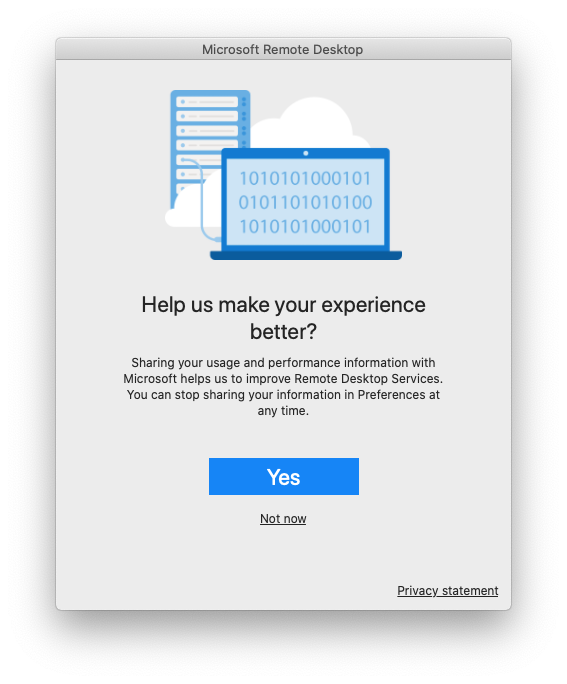 Share
Share
Select whether to share your usage and performance information.
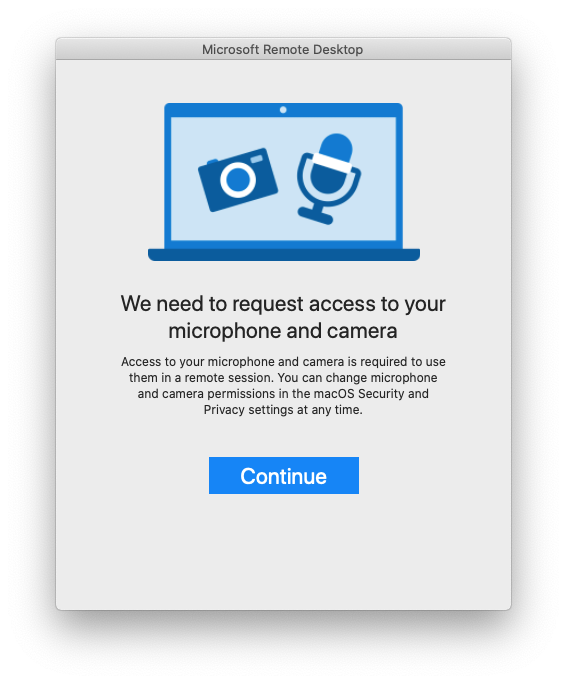 Continue
Click Continue to approve access to your Camera and Microphone.
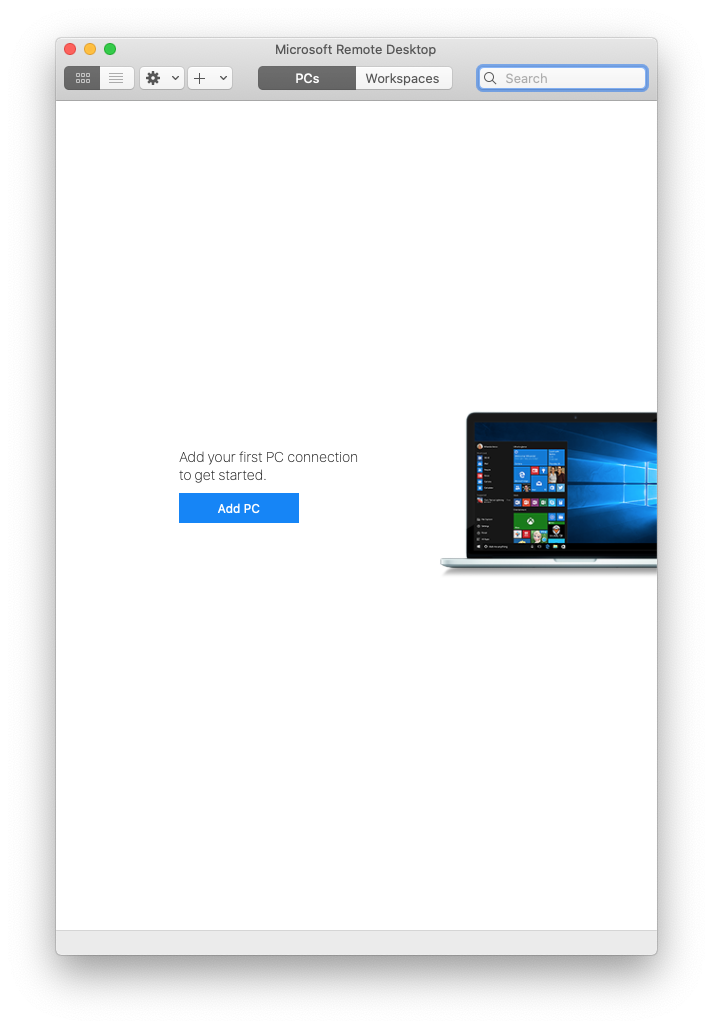 Add PC
Click on the Add PC button in the middle of the Microsoft Remote Desktop Screen.
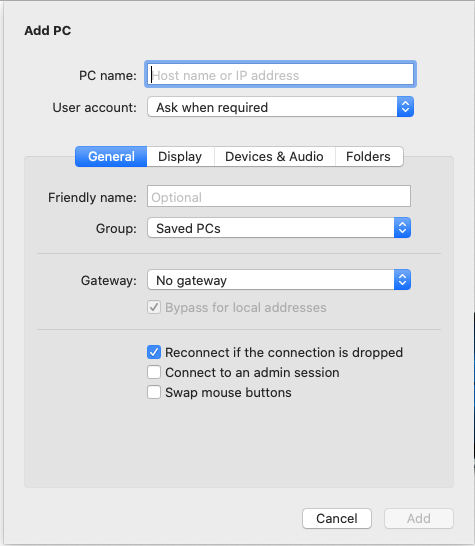 PC Name
Enter the computer name that you noted earlier in the box labeled PC Name: and click Add.
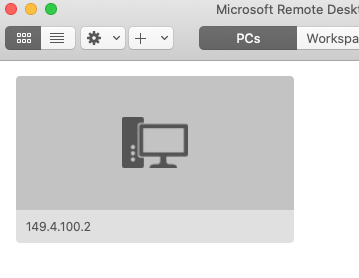 Connect
Double click on the new computer icon that appears, to connect to your work computer.
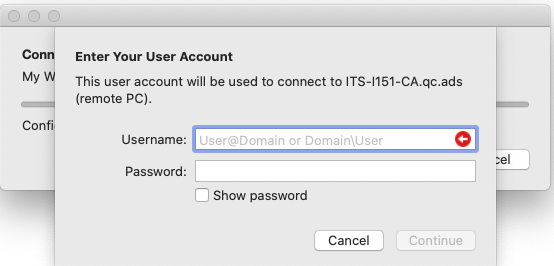 Password
Once connected, you will be prompted for your QC username and password. Your QC username MUST be preceded by “qc\”. (Ex. qc\JSmith)
Logout / Sign out VPN connection
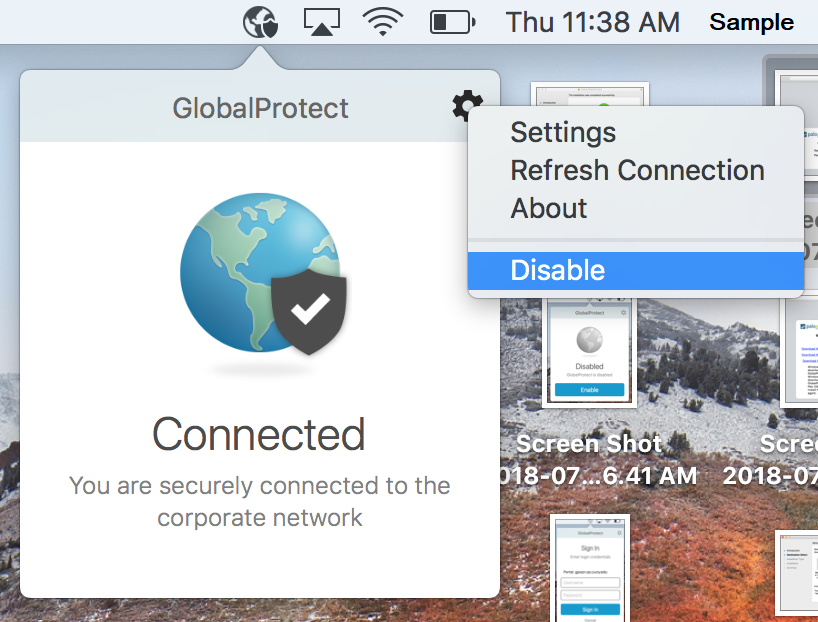 Connected
To logout, click on the GlobalProtect icon, then click the setting icon  , click “Disable”
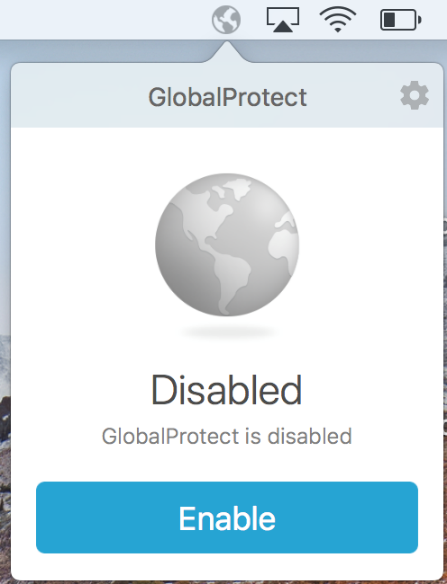 Disable
To re-login again, just click “Enable”, then you will be prompted to login again (username preserved)
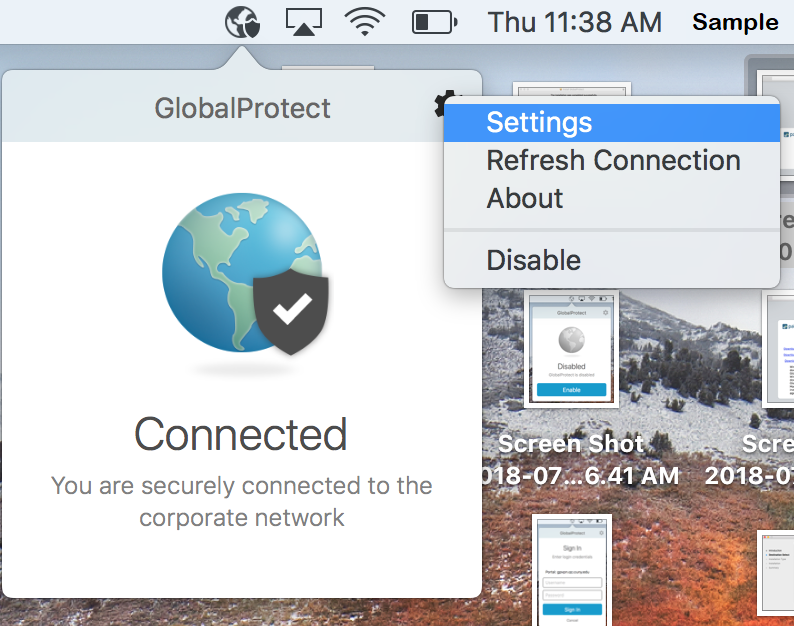 Settings
To sign out VPN completely, click on the GlobalProtect icon, then click the setting icon  , click “Settings”
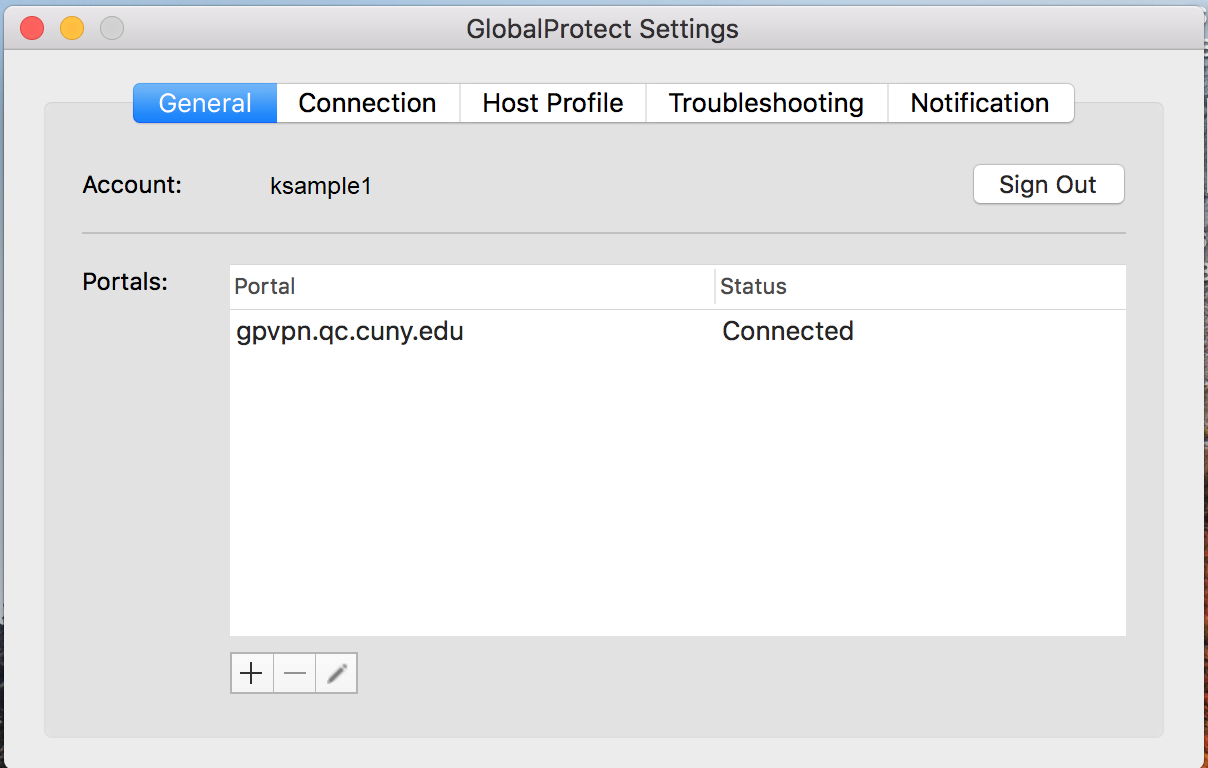 Sign Out
Then click “Sign Out”
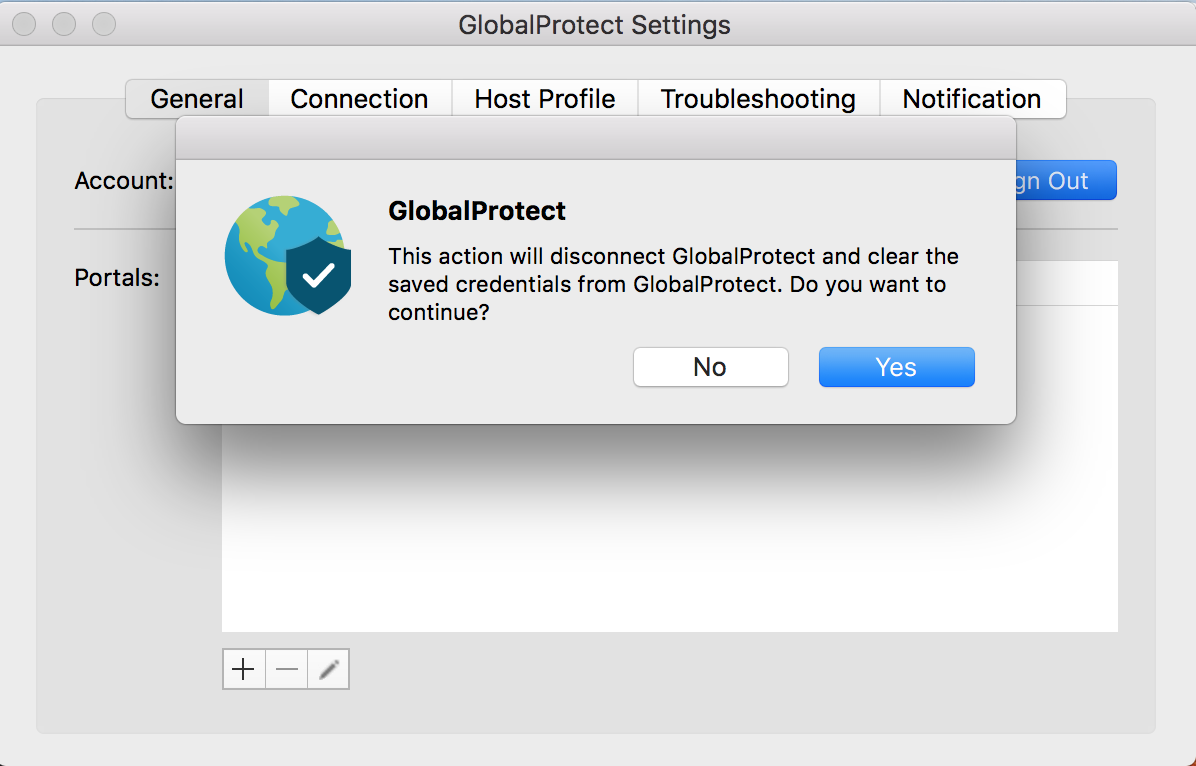 Confirm
Confirm the dialogue to sign out completely
Remarks: Remember to disconnect the VPN connection before logging off, shutting down,or restarting the computer.
Prepared by ITS
Date: Mar 23, 2020
Version 1.3 - DV
Version Listing
Version 1 – Original connection documents from Sunny Chan for VPN & Added Remote Desktop install and connection
Version 1.1 – Added clarification of correct usernames for each location needed. Added clarification that Apple UN/PWD is local, not QC.
Version 1.2 – Changed VNC to Microsoft Remote Desktop in Step 3.
Version 1.3 - Format adjusted for Fresh Service